Scan Issues: One Triage Queue for Every Scanner
Scanners are generous. A single cloud assessment can produce hundreds of results across dozens of accounts and services. A vulnerability scan of an internal range can produce thousands.
Most of it isn’t a finding yet. Some of it is noise, some is already known, and some is the most important thing in the report. Sorting one from the other usually happens in spreadsheets, scanner consoles and exported CSVs, well away from where the report is written.
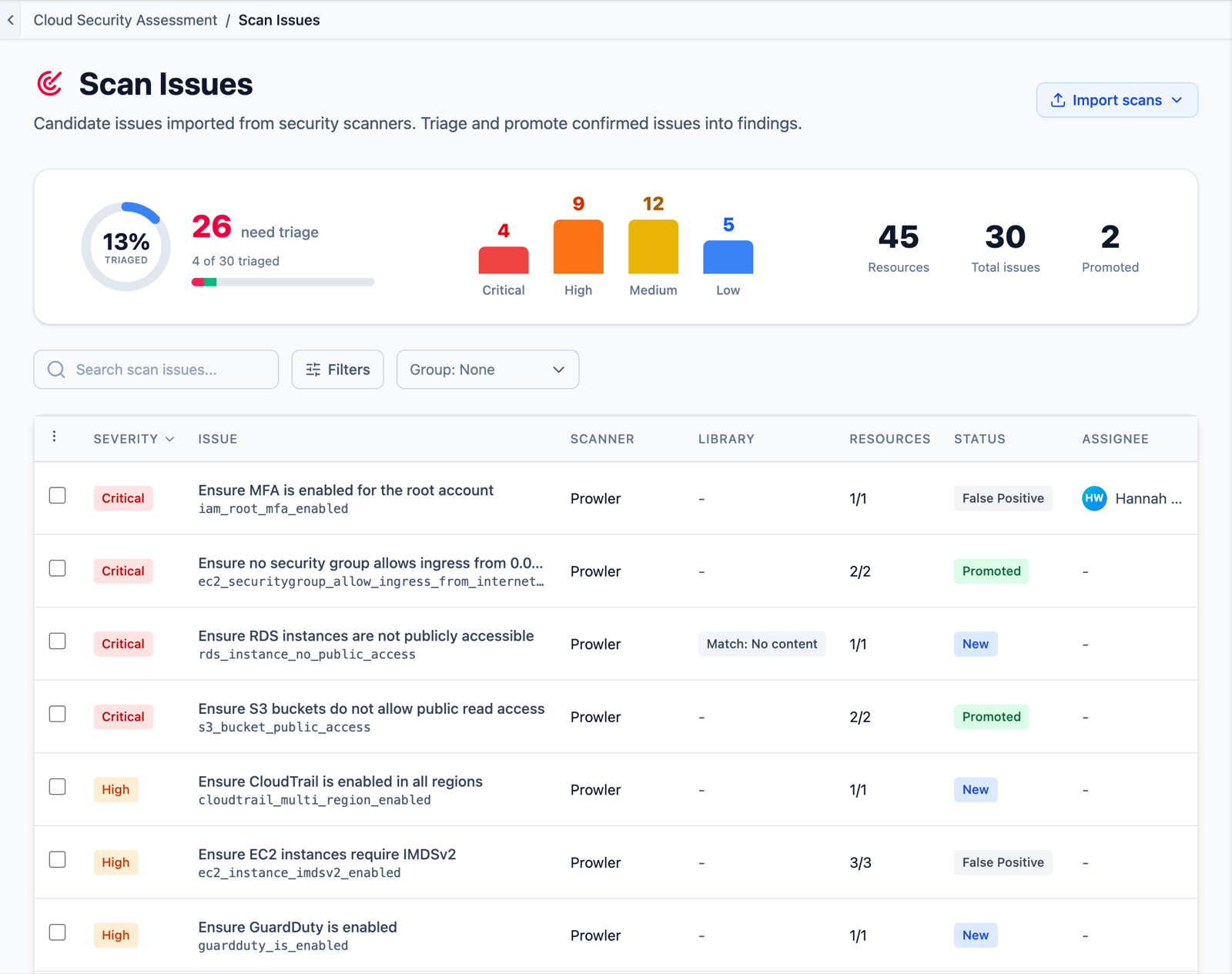
Scan Issues give that work a home. Every scanner result lands in one triage queue inside the engagement, where your team can review it, assign it, dismiss it or promote it into a finding.
Every Scanner, One Queue
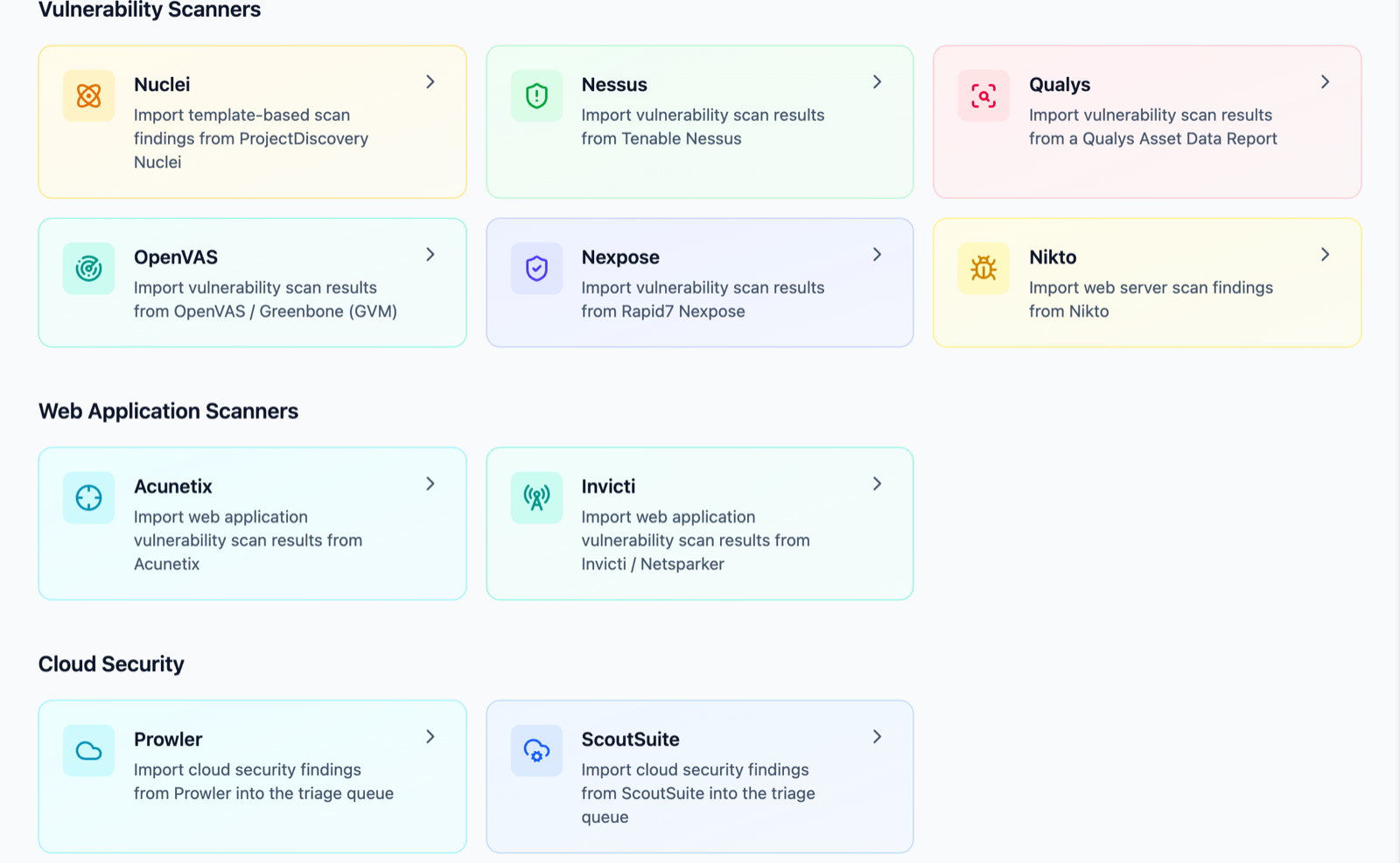
Scan Issues are built from the tools your team already runs:
- Cloud security: Prowler and ScoutSuite
- Vulnerability scanners: Nessus, Qualys, OpenVAS, Nexpose, Nuclei and Nikto
- Web application scanners: Acunetix and Invicti
- Mobile: MobSF
Your other imports contribute too. Nmap NSE output, Shodan, Censys, and HTTP traffic from Burp Suite and ZAP can raise issues such as weak TLS, missing HSTS, insecure cookies, version disclosure and SMB signing, with a toggle on each import. Externally reachable risky ports and high-value hosts from host exposure analysis appear in the same queue.
Imports are written in bulk, so large scans don’t hold up the team. If something was imported into the wrong engagement, roll the import back and every issue it created goes with it.
Triage That Means Something
Each issue moves through clear states: New, In Review, Confirmed, Promoted, False Positive, Risk Accepted and Fixed. The summary at the top of the queue shows how much has been triaged, the severity mix, how many resources are affected and how many issues have become findings.
Filter by severity, scanner, cloud provider, service, account, assignee or status, and group the queue the same way. Assign issues to individual testers, in bulk or with Assign to me, so a large queue can be split across the team without anyone stepping on anyone else.
A few details keep the queue honest:
- Issues a scanner reported as unconfirmed are marked Possible and sorted below firm detections.
- If the same check was already dismissed as a false positive elsewhere in the engagement, the issue says so and drops down the list.
- When a Directory dataset is loaded, issues on assets close to Tier Zero are ranked higher, with a plain explanation of why.
From Issue to Finding
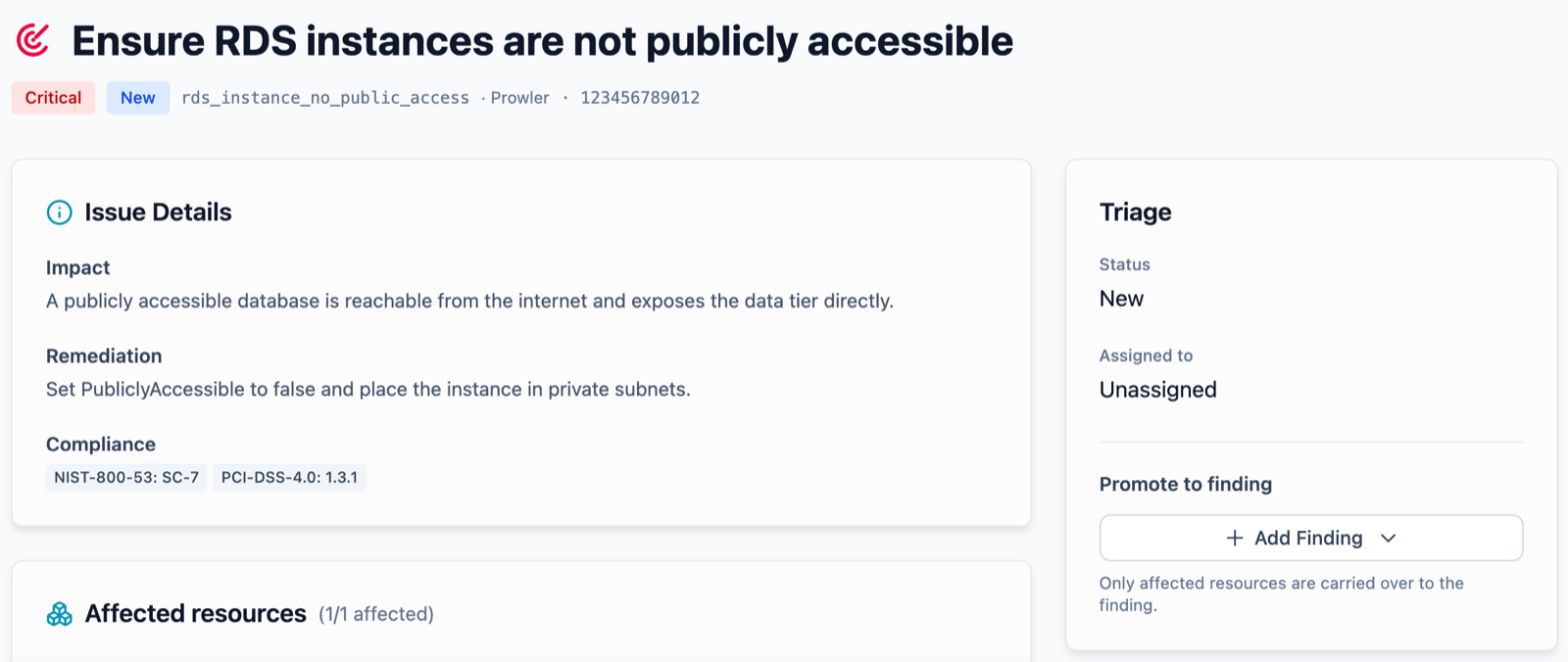
Neuron matches each issue to your Findings Library using the scanner’s check code. The queue shows whether an approved, draft or empty library entry already exists, and issues that match can be promoted in bulk.
Promoting an issue creates a finding with the scanner’s impact, remediation, references and affected resources carried over. Choose which resources to include, or attach the issue to a finding that already exists. Start from library content, write it yourself, or generate it with Neuron AI.
The scanner’s own output is kept verbatim on the affected host, port or web application, so the evidence is always one click away.
What This Means for Your Team
Scanner output stops being something you process outside Neuron and summarize later. Triage happens in the same place as the engagement, the work can be shared across the team, and the path from raw result to reviewed finding is short and traceable. When a client asks why a scanner result isn’t in the report, the answer is recorded right next to it.
If you’d like to see Scan Issues in action, visit https://neuron.ws/demo (opens in a new tab)
Thanks for reading,
The PenTest.WS Development Team

See Neuron on your terms.
Tell us about your team and environment. We will show you Neuron running the way you would run it: on your infrastructure, under your control.